• Skip to primary navigation
  • Skip to main content
  • Skip to primary sidebar
  • Skip to footer

Samsung Galaxy S5 Guide

  • Home
    • About
    • Newsletter
    • Privacy
    • Contact
  • User Manual
    • Samsung Galaxy S5 Android Lollipop User Guide (PDF)
    • Samsung Galaxy S5 user manual (KitKat)
  • How-To Guides
    • How to take screenshot on Samsung Galaxy S5 without using any apps?
    • How to access the developer options on Samsung Galaxy S5?
    • How to access the hardware menu button?
    • Meaning of the notification icons on Samsung Galaxy S5
    • How to use kids mode?
    • How to customize Galaxy S5 ringtones and notification tones?
    • How to use Galaxy S5 Samsung keyboard?
    • How to change Galaxy S5 language?
    • How to turn off My Magazine on Galaxy S5?
    • How to turn on (or off) SMS and MMS message preview on Galaxy S5?
    • How to use Galaxy S5 toolbox
    • How to use Galaxy S5 safety assistance?
    • How to use Galaxy S5 Selective Focus
    • How to silence Galaxy S5?
    • How to use Galaxy S5 finger scanner?
    • How to boot Galaxy S5 into safe mode?
    • How to use Galaxy S5 safe mode to exit kids mode?
    • How to use Galaxy S5 screen mirroring?
    • How to get additional Galaxy S5 camera modes (animated photo, sports shot, sound and shot, sequence shot, and surround shot)
    • Galaxy S5 battery guide
    • How to access and use Galaxy S5 notification panel?
    • How to access and use Galaxy S5 quick settings panel?
    • How to customize Galaxy S5 camera shortcuts menu?
    • How to add widgets to Galaxy S5 home screen?
    • How to use Galaxy S5 camera to take photos continuously without reviewing photos taken in Gallery app?
    • How to disable app notifications on Galaxy S5?
    • How to use app folders in Galaxy S5 home screen?
    • How to manage Galaxy S5 home screen panels?
    • How to use Galaxy S5 camera voice control?
    • How to use Galaxy S5 camera effects?
    • How to set Galaxy S5 photo size and video size?
    • How to save photos to SD card on Galaxy S5?
    • How to use volume button to take photos in Galaxy S5?
    • How to enter Galaxy S5 recovery mode?
  • S5 features
    • Galaxy S5 Fast Auto Focus
    • Galaxy S5 HDR (Rich tone)
    • Galaxy S5 Selective Focus
    • Galaxy S5 Ultra Power Saving Mode
    • Galaxy S5 Download Booster
    • Galaxy S5 Finger Scanner
    • Galaxy S5 Dust and Water Resistant
    • Galaxy S5 Heart Rate Monitor
    • Galaxy S5 New S Health App
    • Galaxy S5 Kids Mode
  • Accessories Guide
    • Galaxy S5 case guide
    • Galaxy S5 Battery Guide

Chromecast

How to use Galaxy S5 screen mirroring?

By simon 5 Comments

galaxyS5_screen_mirroring_wireless_displayWhy and when you need Galaxy S5 screen mirroring?
Galaxy S5 has a gorgeous display. But it is only 5.2″.

You may wonder whether you can enjoy the contents on the big screen (TV).

For example, you may want to show your guests some family photos/videos in your Galaxy S5.

Or you may want to enjoy the Netflix videos on the 60″ TV and home theater systems.

The answer is “yes”.

And even better, you actually have at least two totally different ways to use  Galaxy S5 screen mirroring: through Miracast or through Chromecast.

If you want to know the difference between Chromecast and Miracast, please read this post because this post is focusing  only on how to use Galaxy S5 screen mirroring.

Method 1: Galaxy S5 screen mirroring through Miracast

This method will work for you  if

  1. your TV supports Miracast, OR
  2. you own a Miracast dongle/adapter (e.g., Netgear Push2TV Wireless Display HDMI Adapter), OR
  3. you own a Samsung Wi-Fi All-Share Cast Hub.

Local WiFi (wireless) network actually is not required for Galaxy S5 screen mirroring with this method, although you must enable WiFi on your Galaxy S5.

In other words, you can access contents through your mobile data and Galaxy S5 screen mirroring will work nicely with such contents.

To use Galaxy S5 screen mirroring through Miracast, please follow these steps.

Step 1: Turn on TV and/or insert the dongle to the TV.

You may need switch the TV source to the HDMI port used by the Miracast dongle.

Step 2: Enable WiFi on Galaxy S5.

Miracast does NOT require internet connection (different from Chromecast), and even a wireless router is NOT required. But you must enable WiFi on Galaxy S5 so that Galaxy S5 can connect to the TV or Miracast dongle directly.

TV or Miracast dongle will create a network for your Galaxy S5. This network will NOT affect your current WiFi connection if your Galaxy S5 is connecting to your wireless router.

Step 3. Enable screen mirroring on Galaxy S5

Go to Settings–screen mirroring. Drag it to the tight to enable it.

When you enable the Galaxy S5 screen mirroring, your Galaxy S5 will search for Miracast device nearby automatically.  So, it is important to turn on the Miracast/TV before enabling the screen  mirroring on Galaxy S5.
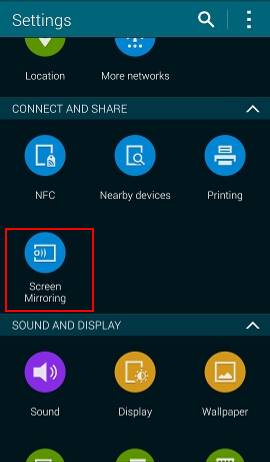
how_to_use_galaxy_s5_screen_mirroring_settings_screen_mirroringhow_to_use_galaxy_s5_screen_mirroring_enabled

Another quicker way to enable Galaxy S5 screen mirroring through Miracast is from the quick settings panel.

You can swipe down from the status bar (top of teh screen) with two fingers. You can tap screen mirroring to enable it quickly. If it is enabled, you can tap to stop it quickly.
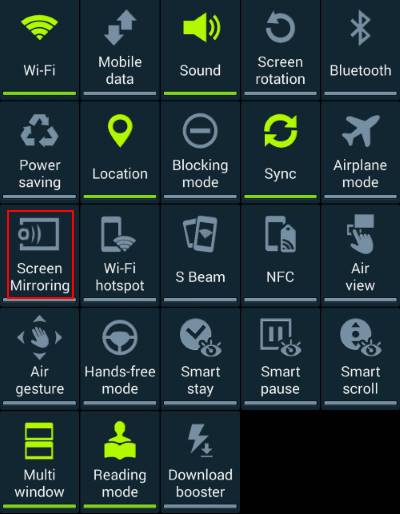
Galaxy_s5_screen_mirroring_wireless_quick_settings

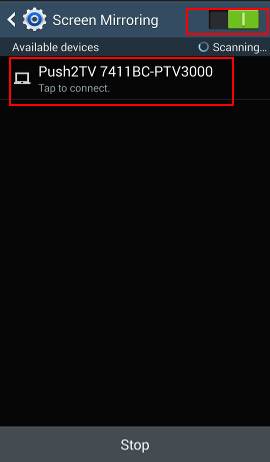
Step 4:  Connect Galaxy S5 to one of the available devices to start screen mirroring

The available Miracast-enabled devices will be listed.  You can tap on one of them to connect your Galaxy S5 to it.

The connecting process should take less than one min normally. To get best conenction, you should keep your phone close (not more than 5m away) … Read the rest


Filed Under: Galaxy S5 Guide Tagged With: Chromecast, Galaxy S5 guide, galaxy S5 screen mirroring, miracast

Primary Sidebar

RSS Galaxy S25 Guides

  • All New Features of One UI 8 (Android 16) Update for Galaxy S25, S24, S23, and S22
  • One UI 8 Update Highlights for Galaxy S25, S24, S23, and S22
  • How to manage camera modes on Galaxy S25 (and Galaxy S24, S23, S22, and S21 with One UI 7 update)?
  • How to Use Galaxy S25 Camera App?
  • A Definite Guide to Galaxy S25 Flipsuit Case
  • How to Access and Customize Now Brief on Galaxy S25?
  • Meaning of Galaxy S25 Status Icons and Notification Icons
  • Layout of Galaxy S25, S25+, and S25 Ultra
  • New Galaxy AI features in Galaxy S25, S25+, and S25 Ultra
  • Top 10 new features of Galaxy S25, S25+, and S25 Ultra

RSS Android Guides

  • A Complete Guide to Android ADB Wireless Debugging
  • Android 16: the definitive guide on new features and changes
  • Master Android 15 Easter Egg Game: Landroid
  • New Features and Improvements of Android 15
  • Top 14 new features of Android 14
  • Top 10 New Features of Android 13
  • Extra Dim in Android 12: The Definite Guide
  • How to update to Android 12?

RSS Galaxy S24 Guides

  • The definitive guide to One UI 7 (Android 15) update for Galaxy S24, S23, S22, and S21
  • The Definitive Guide to Galaxy AI on Galaxy S24, S23, S22, Fold 6, Fold 5, Flip 6, and Flip 5
  • Use the Light Performance Profile to Extend Battery Life and Reduce Heat on Galaxy S24, S23, S22, and S21 (all Samsung Galaxy Phones with Android 14/One UI 6.0)
  • How to adjust lock screen timeout on Galaxy S24, S23, S22, and other Galaxy devices?
  • How to use Circle to Search on Galaxy S24?

RSS Galaxy S23 Guides

  • Explanation of all One UI 6.1 features for Galaxy S23, S23+, S23 Ultra, and other Galaxy devices
  • How to use One-Tap Editing in the Android 14 (One UI 6) update?
  • How to enable and use Auto Scan to scan documents automatically on Galaxy S23, S22, and S21?
  • New camera features in One UI 6 (Android 14) update for Galaxy S23, S22, and S21

RSS Galaxy S22 Guides

  • A Complete Guide for Android 14 (One UI 6) Update on Samsung Galaxy Devices
  • How to touch and hold to customize Lock Screen on Galaxy S22, S21, and S20 with the Android 13 update?
  • How to use Maintenance Mode on Galaxy S23, S22, S21, and S20 with Android 13 (One UI 5)?
  • How to extract text from photos and images on Galaxy S22, S21, and S20?

RSS Galaxy S21 Guide

  • Top 12 new features in Android 12 update for Galaxy S21, S20 and S10
  • Android 12 update vs One UI 4.0 vs One UI 4.1: update Galaxy S21, S20 and S10 to Android 12
  • How to set and resize photo size on Samsung Galaxy S21, S20, S10, and S9 without using any third-party apps?

RSS Galaxy S20 Guides

  • The End of the Road: No Android 14 Update for the Galaxy S20
  • How to Use Enhanced Processing on Galaxy S20 with Android 11 update?
  • How to access, use, and customise widgets on Galaxy S20 lock screen and AOD screen with Android 11 update for Galaxy S20?
  • How to update Galaxy S20 to Android 11?

RSS Galaxy S10 Guides

  • End of security update for Galaxy S10, S10+ and S10e
  • Top 10 new features in Android 10 update for Galaxy S10

RSS Galaxy S9 Guides

  • How to use Bixby quick commands on Galaxy S9, S9+, S8, S8+, Note 8, and Note 9 with the Android Pie update?
  • How to remap Bixby button on Galaxy S9 and S9+ after updating to Android Pie?

RSS Galaxy S8 Guides

  • How to use the new features in Android Pie update for Galaxy S8 and S8+?
  • How to use app shortcuts in Galaxy S8 Home screen in Android Oreo update for Galaxy S8 and S8+?

RSS Galaxy S7 Guides

  • How to use Galaxy S7 multi window new features in Android Nougat udpate for Galaxy S7 and Galaxy S7 edge?
  • How to customize Galaxy S7 quick setting buttons after Android Nougat update?

RSS Google Home Guides

  • How to Use Quick Gestures on Nest Hub 2nd Gen and Nest Hub Max?
  • Understand the layout of Nest Hub (including Nest Hub 2nd Gen, Google Home Hub)
  • How to control Nest Audio?
  • Nest Audio Guides
  • Layout of Google Nest Mini (Google Home Mini 2nd Gen)

RSS Galaxy Note Guides

  • Top 11 disappointments of Galaxy Note 20 and Galaxy Note 20 Ultra
  • How to use the Dynamic Lock screen on Galaxy Note 10?
  • Galaxy Note 10 LED View Cover Guide and Review

RSS Moto X Guide

  • Welcome on board, Motorola Razr!
  • Official Moto X4 User manual (User guide for Moto X 4th Gen , Moto X 2017)
  • What’s new in Android Marshmallow update for Moto X (Moto X 2015, Moto X 2014, Moto X Style and Moto X Pure edition)?

RSS Moto G Guide

  • Stylus features on Moto G Stylus (all models)
  • What’s new in Moto G 2024? Moto G 5G 2024 vs Moto G Power 2024 vs Moto G Play 2024
  • Understand Moto G Model Names

RSS Moto E Guide

  • How to use Moto E6 camera?
  • Official user manual for Moto E6, Moto E6 Plus, Moto E6 Play, and Moto E6s
  • Moto E6 vs Moto E6 Plus vs Moto E6 Play vs Moto E6s: what are the major differences?

RSS Galaxy S6 Guide

  • Android Nougat Update Guide for Galaxy S6, Galaxy S6 edge and Galaxy S6 edge+
  • Official Galaxy S6 user manual with Android Nougat update

Footer

RSS Chromecast & Google TV guides

  • All New Features of One UI 8 (Android 16) Update for Galaxy S25, S24, S23, and S22
  • One UI 8 Update Highlights for Galaxy S25, S24, S23, and S22
  • How to manage camera modes on Galaxy S25 (and Galaxy S24, S23, S22, and S21 with One UI 7 update)?
  • How to Use Galaxy S25 Camera App?
  • A Definite Guide to Galaxy S25 Flipsuit Case
  • How to Access and Customize Now Brief on Galaxy S25?
  • Meaning of Galaxy S25 Status Icons and Notification Icons
  • Layout of Galaxy S25, S25+, and S25 Ultra
  • New Galaxy AI features in Galaxy S25, S25+, and S25 Ultra
  • Top 10 new features of Galaxy S25, S25+, and S25 Ultra

RSS Drive in Singapore

  • Singapore ERP (Electronic Road Pricing): 6 Facts You Need to Know
  • Car Insurance in Singapore Explained
  • Top 5 rules of driving in Singapore safely and legally during COVID-19 Circuit Breaker period
  • Understand COE Price by 10 Simple Questions
  • How to convert a foreign driving license to a Singapore driving license?
  • How to get a Touch ‘n Go card as a Singapore driver?
  • What is covered in the car warranty in Singapore? What is not?
  • What is the Singapore Road Speed Limit?
  • How to register, collect and use Malaysia Vehicle Entry Permit (VEP)?
  • Why are cars in Singapore so expensive?

RSS Headphone Guides

  • Bluetooth LE Audio and the LC3 Codec: A Technical Deep Dive
  • The Physics and Engineering of Super Wide Band (SWB) Voice
  • True Wireless Stereo (TWS) Explained
  • The Complete Technical Guide to the Galaxy Buds 4 & Buds 4 Pro
  • The Right Fit of Galaxy Buds 4 — User Personas & Recommendations
  • Galaxy Buds 4 as an AI Earbud — Tips, Tricks, and Galaxy AI
  • AirPods Pro 3: The Complete Technical Guide and Long-Term Review
  • The Flagship Face-off: Galaxy Buds 4 Pro vs. AirPods Pro 3, Sony WF-1000XM6, and Bose QC Ultra Earbuds II
  • Sony 1000X Headphones and Earbuds Guides
  • The Ultimate Guide to the Sony WF-1000XM6: Everything You Need to Know

© 2013–2026 · · Galaxy S5 Guide The best guide for Samsung Galaxy S5 · · Hosted by PTRHosting · Powered by Genesis framework for WordPress

Disclaimer: Samsung, Galaxy, Galaxy S5 are trademarks of Samsung . This website is NOT affiliated with Samsung in any way. All the information provided on this website is provided on an "as is" and "as available" basis and you agree that you use such information entirely at your own risk.
We use cookies to give you the best online experience. By using our website you agree to our use of cookies in accordance with our cookie policy.
pixel