• Skip to primary navigation
  • Skip to main content
  • Skip to primary sidebar
  • Skip to footer

Samsung Galaxy S5 Guide

  • Home
    • About
    • Newsletter
    • Privacy
    • Contact
  • User Manual
    • Samsung Galaxy S5 Android Lollipop User Guide (PDF)
    • Samsung Galaxy S5 user manual (KitKat)
  • How-To Guides
    • How to take screenshot on Samsung Galaxy S5 without using any apps?
    • How to access the developer options on Samsung Galaxy S5?
    • How to access the hardware menu button?
    • Meaning of the notification icons on Samsung Galaxy S5
    • How to use kids mode?
    • How to customize Galaxy S5 ringtones and notification tones?
    • How to use Galaxy S5 Samsung keyboard?
    • How to change Galaxy S5 language?
    • How to turn off My Magazine on Galaxy S5?
    • How to turn on (or off) SMS and MMS message preview on Galaxy S5?
    • How to use Galaxy S5 toolbox
    • How to use Galaxy S5 safety assistance?
    • How to use Galaxy S5 Selective Focus
    • How to silence Galaxy S5?
    • How to use Galaxy S5 finger scanner?
    • How to boot Galaxy S5 into safe mode?
    • How to use Galaxy S5 safe mode to exit kids mode?
    • How to use Galaxy S5 screen mirroring?
    • How to get additional Galaxy S5 camera modes (animated photo, sports shot, sound and shot, sequence shot, and surround shot)
    • Galaxy S5 battery guide
    • How to access and use Galaxy S5 notification panel?
    • How to access and use Galaxy S5 quick settings panel?
    • How to customize Galaxy S5 camera shortcuts menu?
    • How to add widgets to Galaxy S5 home screen?
    • How to use Galaxy S5 camera to take photos continuously without reviewing photos taken in Gallery app?
    • How to disable app notifications on Galaxy S5?
    • How to use app folders in Galaxy S5 home screen?
    • How to manage Galaxy S5 home screen panels?
    • How to use Galaxy S5 camera voice control?
    • How to use Galaxy S5 camera effects?
    • How to set Galaxy S5 photo size and video size?
    • How to save photos to SD card on Galaxy S5?
    • How to use volume button to take photos in Galaxy S5?
    • How to enter Galaxy S5 recovery mode?
  • S5 features
    • Galaxy S5 Fast Auto Focus
    • Galaxy S5 HDR (Rich tone)
    • Galaxy S5 Selective Focus
    • Galaxy S5 Ultra Power Saving Mode
    • Galaxy S5 Download Booster
    • Galaxy S5 Finger Scanner
    • Galaxy S5 Dust and Water Resistant
    • Galaxy S5 Heart Rate Monitor
    • Galaxy S5 New S Health App
    • Galaxy S5 Kids Mode
  • Accessories Guide
    • Galaxy S5 case guide
    • Galaxy S5 Battery Guide

How to use Galaxy S5 toolbox

What is Galaxy S5 toolbox?

Unlike that for Galaxy S4, Samsung restrained from bragging new features.  The low-profile approach is welcomed by the consumers because more than  99% users are using less than 1% features in today’s smartphones.

But due to this low-profile approach, many Galaxy S5 owners  missed one of the  best new  features:  Galaxy S5 toolbox.

Galaxy S5 toolbox is simply a floating shortcut for your favorite apps. In other words, Galaxy S5 toolbox enables your access to your favorite apps (you name them!) from any screen with one tap.

Once enabled, Galaxy S5 toolbox will be shown as a translucent floating icon in all screens.

How to enable  Galaxy S5 toolbox?

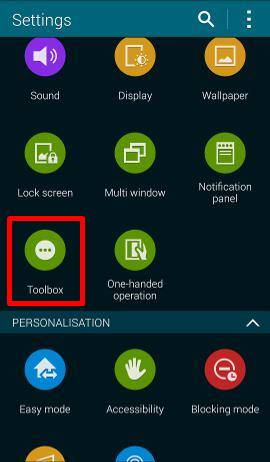
By default, Galaxy S5 toolbox is not enabled. You can easily enable it from Settings–Toolbox.

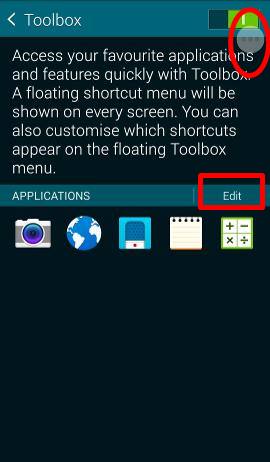
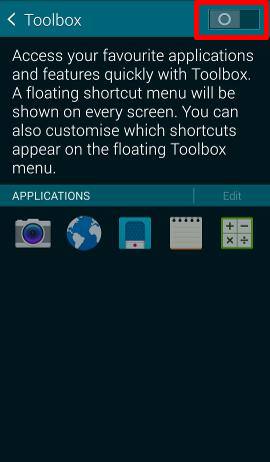
In the Galaxy S5  Toolbox page, drag the settings to the right side to enable it. Of course, if you wan to disable the toolbox for whatever reason,  just drag the toggle to the left.

After enabling Galaxy S5 toolbox, you will notice a translucent icon on the screen as shown below.
galaxy_s5_toolbox_settingsenable galaxy_s5_toolbox_


galaxy_s5_toolbox_iconalaxy_s5_toolbox_customize-fav-apps

How to customize favorite apps to Galaxy S5 toolbox?

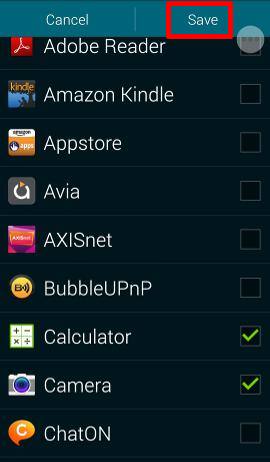
The galaxy S5 toolbox  hold 5 apps by default. Of course, you can customize these favorite apps by replacing them with any apps in your phone. The apps that can be added to toolbox are not limited to pre-installed ones.

To change the apps in the toolbox, you can tap the Edit button.  Then, you can select and deselect any apps for Galaxy S5 toolbox as shown above.

That’s all configuration needed.

How to use Galaxy S5 toolbox?

Once Galaxy S5 toolbox is enabled, it will be available everywhere. The translucent icon is always presented in your screen.  It is not so obtrusive as some may expect.

You can also move the location of  the toolbox to any other locations in the screen. Simply touch and hold the floating icon, you can then dock it to any locations in your screen.

To use Galaxy S5 toolbox to access your favorite apps quickly, you simply tap the floating icon. The apps in the toolbox will then be available. You can open the app by tap it in the list as shown below.
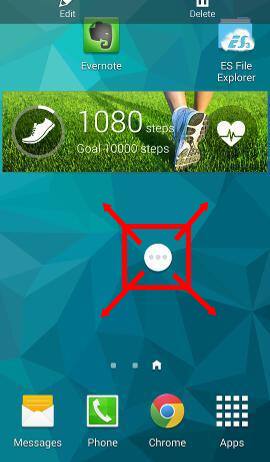
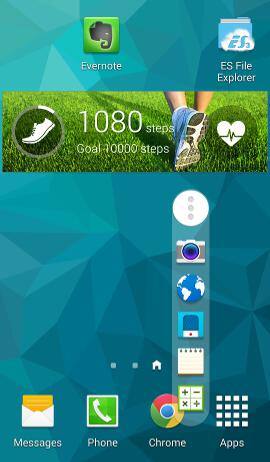
galaxy_s5_toolbox_move_icon galaxy_s5_toolbox_access-fav-apps

 How to quickly disable/enable galaxy S5 toolbox

For some reason, you may want to disable the toolbox temporally.  This can be done through quick settings panel quickly.

To access Quick Settings panel in S5, swipe down from the status bar (top of the screen) with 2 (two) fingers. In the quick settings window, you can tap Toolbox to disable/enable it instantly.
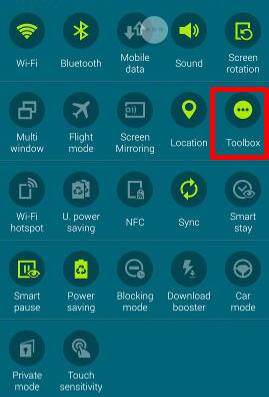
galaxy_s5_toolbox_disable_from_quick_settings

Of course, you can also disable/enable Galaxy S5 toolbox through Settings–Toolbox as illustrated above.

Have you tried galaxy S5 toolbox?

If you have any questions or encounter any problems with galaxy S5 toolbox, please leave them in the comment box below.

More how-to guides , tips and tricks for using Samsung Galaxy S5 are available at Samsung Galaxy S5 how-to guides page.

Share this:

  • Share on X (Opens in new window) X
  • Share on LinkedIn (Opens in new window) LinkedIn
  • Share on Facebook (Opens in new window) Facebook

Reader Interactions

Comments

  1. April says

    August 15, 2014 at 12:15 am

    I have found a weird issue when using the toolbox on my s5 unfortunately when it is floating in the background of my pages I went to send a Freind a text message and I thought something was wrong with the keyboard? I could not type fast anymore it was really slow? I didn’t know why? So I took the toolbox of and it worked again. So I decided to test my typing on the search bar with the toolbox on again and it did the same thing? Why would it slow my typing down that much! I like the toolbox but can not use it because it makes my typing that slow? Can someone explain why? I found this out by a fluke please try putting ur toolbox on and see if u can type a message it is really slow.

    Reply
    • simon says

      August 15, 2014 at 12:55 am

      I didn’t experience this issue.

      It could be due to some bugs for firmware in some regions or due to some other settings or apps.


      Galaxy S5 manual: Galaxy S5 user guide/manuals (PDF)|| Galaxy S5 Guide: Galaxy S5 How-to guides || Our Facebook page || Galaxy S6 Guides || Galaxy S7 Guides || Android Guides || Galaxy S8 Guides || Galaxy S9 Guides || Google Home Guides || Galaxy S10 Guides || Galaxy S20 Guides || Headphone Guides || Galaxy S20 Guides || Chromecast Guides Guides || Moto G Guides || Galaxy S4 Guides || || Enjoy Chinese Music

      Reply
  2. April says

    August 15, 2014 at 4:55 am

    What can I do it is really slow when using the toolbox? Now I am worried because u are not seeing this issue in ur phone? Maybe I should take it in to get looked at? I have only had the phone a week.

    Reply
    • simon says

      August 15, 2014 at 10:38 am

      Are you using Samsung keyboard? Did you test it with other keyboards, for example, Google keyboard or SwiftKey?


      Galaxy S5 manual: Galaxy S5 user guide/manuals (PDF)|| Galaxy S5 Guide: Galaxy S5 How-to guides || Our Facebook page || Galaxy S6 Guides || Galaxy S7 Guides || Android Guides || Galaxy S8 Guides || Galaxy S9 Guides || Google Home Guides || Galaxy S10 Guides || Galaxy S20 Guides || Headphone Guides || Galaxy S20 Guides || Chromecast Guides Guides || Moto G Guides || Galaxy S4 Guides || || Enjoy Chinese Music

      Reply
  3. walid says

    August 16, 2014 at 6:01 pm

    the icon of tool box is there but does not open to enable or disable how to fix this

    Reply
    • simon says

      August 17, 2014 at 2:42 am

      If you tap it, it should open the menu. If you tap and hold it, it should let you to edit.

      Did you try it in home screen, or in any specific apps?

      Some task manager apps may affect this feature.


      Galaxy S5 manual: Galaxy S5 user guide/manuals (PDF)|| Galaxy S5 Guide: Galaxy S5 How-to guides || Our Facebook page || Galaxy S6 Guides || Galaxy S7 Guides || Android Guides || Galaxy S8 Guides || Galaxy S9 Guides || Google Home Guides || Galaxy S10 Guides || Galaxy S20 Guides || Headphone Guides || Galaxy S20 Guides || Chromecast Guides Guides || Moto G Guides || Galaxy S4 Guides || || Enjoy Chinese Music

      Reply
  4. Leanne says

    March 19, 2018 at 2:42 am

    Can it be altered so it will show on lock screen. I have the torch on mine and it would be handy to access it quickly.

    Reply
    • simon says

      March 19, 2018 at 10:15 am

      No, you cannot use toolbox in the lock screen.


      Galaxy S5 manual: Galaxy S5 user guide/manuals (PDF)|| Galaxy S5 Guide: Galaxy S5 How-to guides || Our Facebook page || Galaxy S6 Guides || Galaxy S7 Guides || Android Guides || Galaxy S8 Guides || Galaxy S9 Guides || Google Home Guides || Galaxy S10 Guides || Galaxy S20 Guides || Headphone Guides || Galaxy S20 Guides || Chromecast Guides Guides || Moto G Guides || Galaxy S4 Guides || || Enjoy Chinese Music

      Reply

Leave a ReplyCancel reply

Primary Sidebar

RSS Galaxy S25 Guides

  • All New Features of One UI 8 (Android 16) Update for Galaxy S25, S24, S23, and S22
  • One UI 8 Update Highlights for Galaxy S25, S24, S23, and S22
  • How to manage camera modes on Galaxy S25 (and Galaxy S24, S23, S22, and S21 with One UI 7 update)?
  • How to Use Galaxy S25 Camera App?
  • A Definite Guide to Galaxy S25 Flipsuit Case
  • How to Access and Customize Now Brief on Galaxy S25?
  • Meaning of Galaxy S25 Status Icons and Notification Icons
  • Layout of Galaxy S25, S25+, and S25 Ultra
  • New Galaxy AI features in Galaxy S25, S25+, and S25 Ultra
  • Top 10 new features of Galaxy S25, S25+, and S25 Ultra

RSS Android Guides

  • A Complete Guide to Android ADB Wireless Debugging
  • Android 16: the definitive guide on new features and changes
  • Master Android 15 Easter Egg Game: Landroid
  • New Features and Improvements of Android 15
  • Top 14 new features of Android 14
  • Top 10 New Features of Android 13
  • Extra Dim in Android 12: The Definite Guide
  • How to update to Android 12?

RSS Galaxy S24 Guides

  • The definitive guide to One UI 7 (Android 15) update for Galaxy S24, S23, S22, and S21
  • The Definitive Guide to Galaxy AI on Galaxy S24, S23, S22, Fold 6, Fold 5, Flip 6, and Flip 5
  • Use the Light Performance Profile to Extend Battery Life and Reduce Heat on Galaxy S24, S23, S22, and S21 (all Samsung Galaxy Phones with Android 14/One UI 6.0)
  • How to adjust lock screen timeout on Galaxy S24, S23, S22, and other Galaxy devices?
  • How to use Circle to Search on Galaxy S24?

RSS Galaxy S23 Guides

  • Explanation of all One UI 6.1 features for Galaxy S23, S23+, S23 Ultra, and other Galaxy devices
  • How to use One-Tap Editing in the Android 14 (One UI 6) update?
  • How to enable and use Auto Scan to scan documents automatically on Galaxy S23, S22, and S21?
  • New camera features in One UI 6 (Android 14) update for Galaxy S23, S22, and S21

RSS Galaxy S22 Guides

  • A Complete Guide for Android 14 (One UI 6) Update on Samsung Galaxy Devices
  • How to touch and hold to customize Lock Screen on Galaxy S22, S21, and S20 with the Android 13 update?
  • How to use Maintenance Mode on Galaxy S23, S22, S21, and S20 with Android 13 (One UI 5)?
  • How to extract text from photos and images on Galaxy S22, S21, and S20?

RSS Galaxy S21 Guide

  • Top 12 new features in Android 12 update for Galaxy S21, S20 and S10
  • Android 12 update vs One UI 4.0 vs One UI 4.1: update Galaxy S21, S20 and S10 to Android 12
  • How to set and resize photo size on Samsung Galaxy S21, S20, S10, and S9 without using any third-party apps?

RSS Galaxy S20 Guides

  • The End of the Road: No Android 14 Update for the Galaxy S20
  • How to Use Enhanced Processing on Galaxy S20 with Android 11 update?
  • How to access, use, and customise widgets on Galaxy S20 lock screen and AOD screen with Android 11 update for Galaxy S20?
  • How to update Galaxy S20 to Android 11?

RSS Galaxy S10 Guides

  • End of security update for Galaxy S10, S10+ and S10e
  • Top 10 new features in Android 10 update for Galaxy S10

RSS Galaxy S9 Guides

  • How to use Bixby quick commands on Galaxy S9, S9+, S8, S8+, Note 8, and Note 9 with the Android Pie update?
  • How to remap Bixby button on Galaxy S9 and S9+ after updating to Android Pie?

RSS Galaxy S8 Guides

  • How to use the new features in Android Pie update for Galaxy S8 and S8+?
  • How to use app shortcuts in Galaxy S8 Home screen in Android Oreo update for Galaxy S8 and S8+?

RSS Galaxy S7 Guides

  • How to use Galaxy S7 multi window new features in Android Nougat udpate for Galaxy S7 and Galaxy S7 edge?
  • How to customize Galaxy S7 quick setting buttons after Android Nougat update?

RSS Google Home Guides

  • How to Use Quick Gestures on Nest Hub 2nd Gen and Nest Hub Max?
  • Understand the layout of Nest Hub (including Nest Hub 2nd Gen, Google Home Hub)
  • How to control Nest Audio?
  • Nest Audio Guides
  • Layout of Google Nest Mini (Google Home Mini 2nd Gen)

RSS Galaxy Note Guides

  • Top 11 disappointments of Galaxy Note 20 and Galaxy Note 20 Ultra
  • How to use the Dynamic Lock screen on Galaxy Note 10?
  • Galaxy Note 10 LED View Cover Guide and Review

RSS Moto X Guide

  • Welcome on board, Motorola Razr!
  • Official Moto X4 User manual (User guide for Moto X 4th Gen , Moto X 2017)
  • What’s new in Android Marshmallow update for Moto X (Moto X 2015, Moto X 2014, Moto X Style and Moto X Pure edition)?

RSS Moto G Guide

  • Stylus features on Moto G Stylus (all models)
  • What’s new in Moto G 2024? Moto G 5G 2024 vs Moto G Power 2024 vs Moto G Play 2024
  • Understand Moto G Model Names

RSS Moto E Guide

  • How to use Moto E6 camera?
  • Official user manual for Moto E6, Moto E6 Plus, Moto E6 Play, and Moto E6s
  • Moto E6 vs Moto E6 Plus vs Moto E6 Play vs Moto E6s: what are the major differences?

RSS Galaxy S6 Guide

  • Android Nougat Update Guide for Galaxy S6, Galaxy S6 edge and Galaxy S6 edge+
  • Official Galaxy S6 user manual with Android Nougat update

Footer

RSS Chromecast & Google TV guides

  • All New Features of One UI 8 (Android 16) Update for Galaxy S25, S24, S23, and S22
  • One UI 8 Update Highlights for Galaxy S25, S24, S23, and S22
  • How to manage camera modes on Galaxy S25 (and Galaxy S24, S23, S22, and S21 with One UI 7 update)?
  • How to Use Galaxy S25 Camera App?
  • A Definite Guide to Galaxy S25 Flipsuit Case
  • How to Access and Customize Now Brief on Galaxy S25?
  • Meaning of Galaxy S25 Status Icons and Notification Icons
  • Layout of Galaxy S25, S25+, and S25 Ultra
  • New Galaxy AI features in Galaxy S25, S25+, and S25 Ultra
  • Top 10 new features of Galaxy S25, S25+, and S25 Ultra

RSS Drive in Singapore

  • Singapore ERP (Electronic Road Pricing): 6 Facts You Need to Know
  • Car Insurance in Singapore Explained
  • Top 5 rules of driving in Singapore safely and legally during COVID-19 Circuit Breaker period
  • Understand COE Price by 10 Simple Questions
  • How to convert a foreign driving license to a Singapore driving license?
  • How to get a Touch ‘n Go card as a Singapore driver?
  • What is covered in the car warranty in Singapore? What is not?
  • What is the Singapore Road Speed Limit?
  • How to register, collect and use Malaysia Vehicle Entry Permit (VEP)?
  • Why are cars in Singapore so expensive?

RSS Headphone Guides

  • Bluetooth LE Audio and the LC3 Codec: A Technical Deep Dive
  • The Physics and Engineering of Super Wide Band (SWB) Voice
  • True Wireless Stereo (TWS) Explained
  • The Complete Technical Guide to the Galaxy Buds 4 & Buds 4 Pro
  • The Right Fit of Galaxy Buds 4 — User Personas & Recommendations
  • Galaxy Buds 4 as an AI Earbud — Tips, Tricks, and Galaxy AI
  • AirPods Pro 3: The Complete Technical Guide and Long-Term Review
  • The Flagship Face-off: Galaxy Buds 4 Pro vs. AirPods Pro 3, Sony WF-1000XM6, and Bose QC Ultra Earbuds II
  • Sony 1000X Headphones and Earbuds Guides
  • The Ultimate Guide to the Sony WF-1000XM6: Everything You Need to Know

© 2013–2026 · · Galaxy S5 Guide The best guide for Samsung Galaxy S5 · · Hosted by PTRHosting · Powered by Genesis framework for WordPress

Disclaimer: Samsung, Galaxy, Galaxy S5 are trademarks of Samsung . This website is NOT affiliated with Samsung in any way. All the information provided on this website is provided on an "as is" and "as available" basis and you agree that you use such information entirely at your own risk.
We use cookies to give you the best online experience. By using our website you agree to our use of cookies in accordance with our cookie policy.
pixel